 FrameCast
iPhone
Record your iPhone screen
Record everything on your iPhone screen with app sound and, if you like, your voice. It keeps recording after you leave FrameCast.
Where to find it
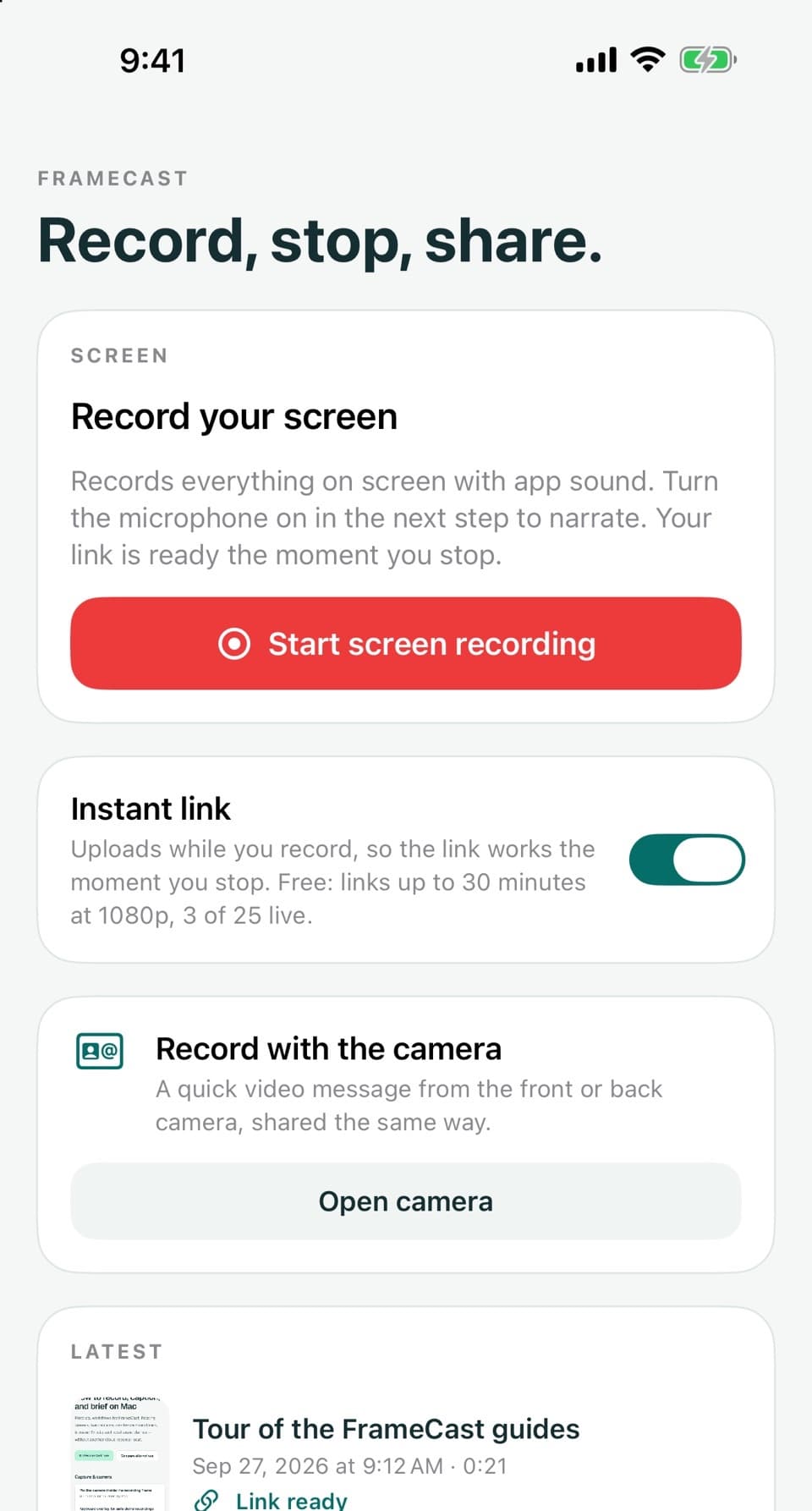
Record tab → Start screen recording
How to do it
Open the Record tab and tap Start screen recording.
In the iOS sheet that opens, turn the microphone on if you want to narrate, then tap Start Broadcast.
A countdown shows (Recording starts in). Go to whatever you want to record. Tap Cancel to stop before it starts.
Use your iPhone as normal. Stop from FrameCast with Stop recording, from the Dynamic Island, or from the red status indicator.
Good to know
- The whole screen is recorded, including notifications. Turn on a Focus first if you don't want them in the video.
- There's no camera bubble over iPhone screen recordings. Record a Video message separately with the camera.
- Who can use it
- Free; instant links need sign-in
- Where it works
- iPhone
This guide answers
- How do I screen record on my iPhone with FrameCast?
- How do I record my iPhone screen with my voice?
- Why is there no sound from my microphone in my iPhone recording?
- Does the recording keep going when I switch apps?
- How do I record a demo of an iPhone app?